It works on claude.ai and the Claude desktop app (Mac and Windows). Connectors live in your Claude account, so connecting in one gives you both.
1. Add the connector
- In Claude, open Settings → Connectors.
- Click Add custom connector.
- Under Name, type
falatu. - Under URL, paste:
https://mcp.falatu.ai/mcp- Click Add.
The address is also in Settings → Agents and MCP, with a Copy button.
2. Log in with your falatu account
Click Connect on the falatu connector. A falatu window opens: log in with the same email and password (or Google) you use in the app.
3. Allow
falatu shows what Claude will be able to do on your account: what it will see, what it will be able to change and what it will never be able to do.
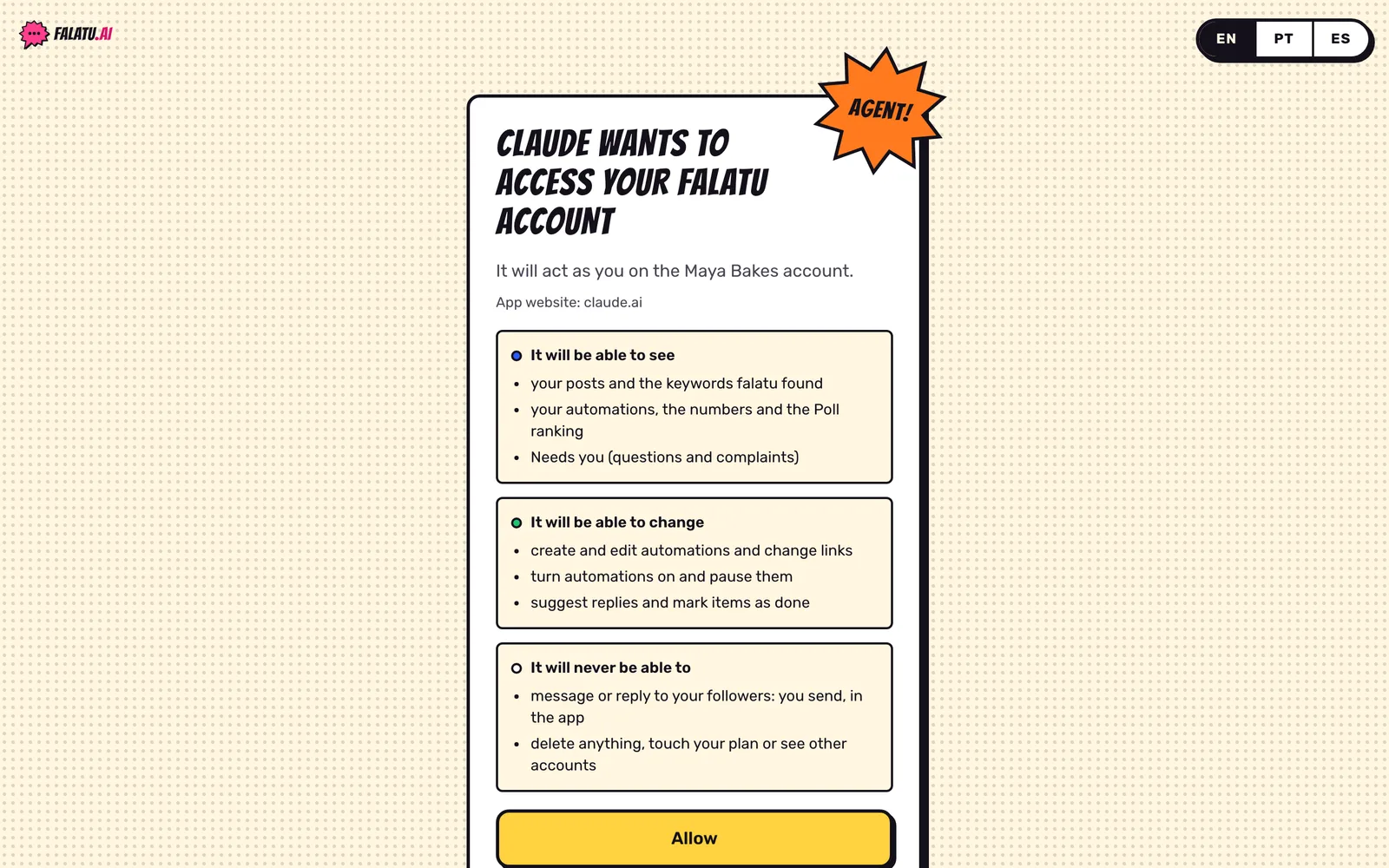
Check it and click Allow. The window closes and Claude comes back connected.
If your role on the account is member, the screen says so: Claude will only be able to see, not change.
4. Ask
Done. In a new chat, ask something like:
Which automations do I have on falatu and how did they do in the last 7 days?The first time, Claude may ask whether it can use the falatu tool: just allow it. See more example requests.
Disconnect
In Settings → Agents and MCP, under Connected apps, click Disconnect next to Claude. Access stops at once. If you like, also remove the connector in Claude's settings.